Strong password and MFA at work: passphrases, password managers and passkeys
A strong password at work is long, unique to one account and stored in a password manager, not one you rotate every 90 days. Pair it with multi-factor authentication (MFA), and where possible use phishing-resistant MFA such as passkeys or security keys, because codes and push prompts can still be phished.
Why passwords still matter
Most break-ins do not need clever hacking. Attackers log in with a password that was phished, guessed, bought from a breach or captured by malware on a home laptop. In March 2024 the National Cyber Security Agency (NACSA) reported a rise in incidents using stolen login credentials against Malaysian websites, systems and networks. It noted the technique needs little technical skill, and recommended stronger passwords and multi-factor authentication to cut off attacks built on compromised passwords.
A single work account can be worth a lot: e-mail that can be used to redirect supplier payments, a remote access login that leads to ransomware, or a cloud drive full of customer data. Password and MFA habits are therefore a business control, not a personal preference. See ransomware attack: what to do for where a stolen login can lead.
What makes a strong password: passphrases
Old rules (eight characters, one capital, one symbol, change every 90 days) produced passwords like Password1! and Mac2026!. They are easy to guess and hard to remember.
The US National Institute of Standards and Technology, whose Digital Identity Guidelines (SP 800-63B-4, finalised in 2025) are widely used as a benchmark, now says:
- A password used as the only factor should be at least 15 characters; one used together with MFA at least 8.
- Systems should allow at least 64 characters, accept spaces, and allow password managers and pasting.
- Systems should not impose composition rules such as “one symbol and one number”.
- Systems should not force periodic changes, but must force a change when there is evidence of compromise.
- New passwords should be checked against lists of breached and common passwords.
- Password hints and security questions should not be used.
The practical answer is a passphrase: four or more unrelated words, for example lantern teh-tarik orbit seven. Do not use song lyrics, quotes, your car plate, your child’s name or anything findable on your social media. And never reuse it: a passphrase used on a shopping site and your work e-mail is only as safe as the shopping site.
Check your own company policy. Some regulated sectors and older systems still require rotation or complexity, and staff must follow the policy that applies to them.
Password managers
No one can remember dozens of long, unique passwords. A password manager generates and stores them, fills them in, and only needs you to remember one strong master passphrase.
- Use the one your employer approves for work accounts. A company-managed vault can be recovered when you are away and removed when you leave.
- Protect the master passphrase and turn on MFA for the password manager itself.
- Autofill helps against phishing: a manager will not fill your password into a fake site with a different web address. If it does not offer to fill, stop and check the address.
- Do not store work passwords in browser notes, spreadsheets, sticky notes or chat messages to yourself.
- Never share passwords. If a colleague needs access, ask IT to grant it to their own account. Shared logins make it impossible to tell who did what.
MFA types: which ones resist phishing
Multi-factor authentication asks for something beyond the password: something you have (a phone or key) or something you are (a fingerprint or face). It stops most attacks that rely on a stolen password alone. But not all MFA is equal.
| Method | How it works | Phishing-resistant? |
|---|---|---|
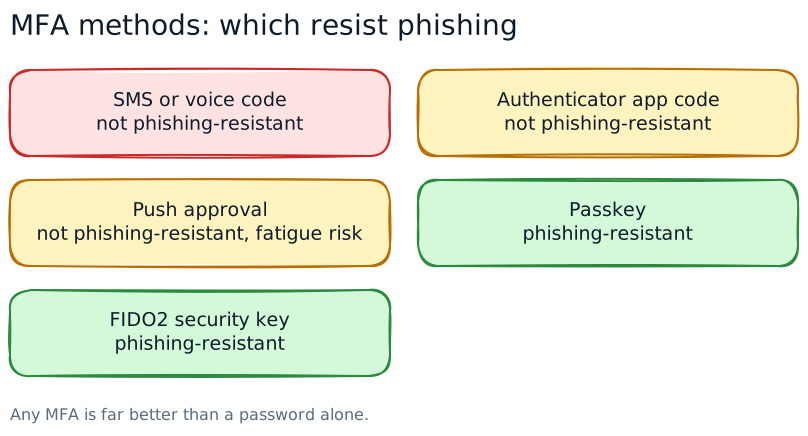
| SMS or voice code | A one-time code sent to your phone number | No. Codes can be phished, and SIM swap or malicious apps can intercept them. |
| Authenticator app code | A six-digit code that changes every 30 seconds | No. A fake login page can ask for it and use it immediately. |
| Push approval | Tap “approve” on your phone | No. Open to MFA fatigue. Number matching makes it harder to abuse. |
| Passkey | A cryptographic key on your phone or laptop, unlocked with your fingerprint, face or PIN | Yes. It only works on the real website it was created for. |
| FIDO2 security key | A physical USB or NFC key | Yes. Same protection, with the key in your pocket. |
The reason is simple. With a code, you decide where to type it, so a convincing fake site can collect it. With a passkey or FIDO2 key, the browser checks the real website address before the key will answer. NIST states that methods where you manually enter an output are not phishing-resistant.
In Malaysia, Bank Negara directed banks in September 2022 to migrate away from SMS one-time passwords for activities such as fund transfers and payments, as one of its anti-scam measures. CyberSecurity Malaysia has also promoted passwordless authentication. At work: use whatever MFA your organisation offers, and choose a passkey or security key where you have the option, especially for e-mail, remote access and admin accounts.
MFA fatigue and code-theft tricks
Attackers who already have a password try to get past MFA by getting you to complete it.
- MFA fatigue (push bombing). You get a stream of login approval requests, sometimes late at night, until you tap “approve” by mistake or just to make it stop. Often followed by a message or call from “IT” asking you to accept.
- Code requests. A caller claiming to be from IT, the bank or a courier asks you to read out the code you just received.
- Fake login pages that relay your password and code to the real site in real time.
- Malicious apps on phones that read SMS codes or take remote control.
The rules for staff:
- Only approve a prompt you started yourself, seconds ago.
- If you get a prompt you did not start, deny it and report it. It means someone has your password, so change it.
- Never tell anyone a one-time code. IT will never ask for it.
- Report repeated prompts immediately; IT can see where the attempts come from.
For IT teams, US CISA guidance recommends number matching for push MFA as an interim step, phishing-resistant MFA as the goal, and investigating denied prompts. The Passwords, MFA & Identity lesson lets staff practise passphrases, push-fatigue attacks and recovery scams in a 3D scene, and Malicious Apps, Remote Access & OTP Theft covers the mobile side.
Account recovery and a short policy checklist
Recovery is often the weakest link. If a scammer can convince the helpdesk to reset your password, or take over the personal phone number used for recovery, your strong password and MFA do not matter.
- Helpdesk resets should verify identity properly, for example a video call with the manager or a check against HR records, not just a name and staff number.
- Keep recovery details current, and do not use a recovery e-mail that is itself weakly protected.
- Store backup codes in the password manager or a safe place, not in your inbox.
- Register a second passkey or key, so losing one device does not lock you out.
A one-page policy for most organisations:
- Long, unique passphrases; no forced rotation unless compromised.
- An approved password manager for all staff.
- MFA on e-mail, remote access, cloud apps and every admin account.
- Phishing-resistant MFA for administrators and finance, then everyone.
- No shared accounts; least privilege; remove access promptly when people leave.
- Lock screens when you step away.
- Report unexpected prompts and suspected phishing at once.
Pair this with Phishing & Social Engineering and the guide to phishing awareness training.
Practise it in WorkQuest2U
Short 3D lessons where staff walk the scene, spot the issues and make the calls. Free to try, with certificates and progress records for companies.
 Cybersecurity & Data ProtectionPasswords, MFA & IdentityA digital shared-services hub: passphrases and password managers, MFA and push-fatigue attacks, one-time codes, recovery scams, least privilege, access reviews and locked screens.
 Cybersecurity & Data ProtectionPhishing & Social EngineeringA tower lobby and office floor: pretexting, tailgating, phishing emails, checking links, vishing, SMS and WhatsApp scams, QR-code phishing and what to do if you clicked.
 Cybersecurity & Data ProtectionMalicious Apps, Remote Access & OTP TheftInside a mobile threat lab: APKs from links, Accessibility abuse, fake overlay screens, remote-access "support", stolen SMS codes, how banks and telcos fight back, and how to help a customer clean up a phone.
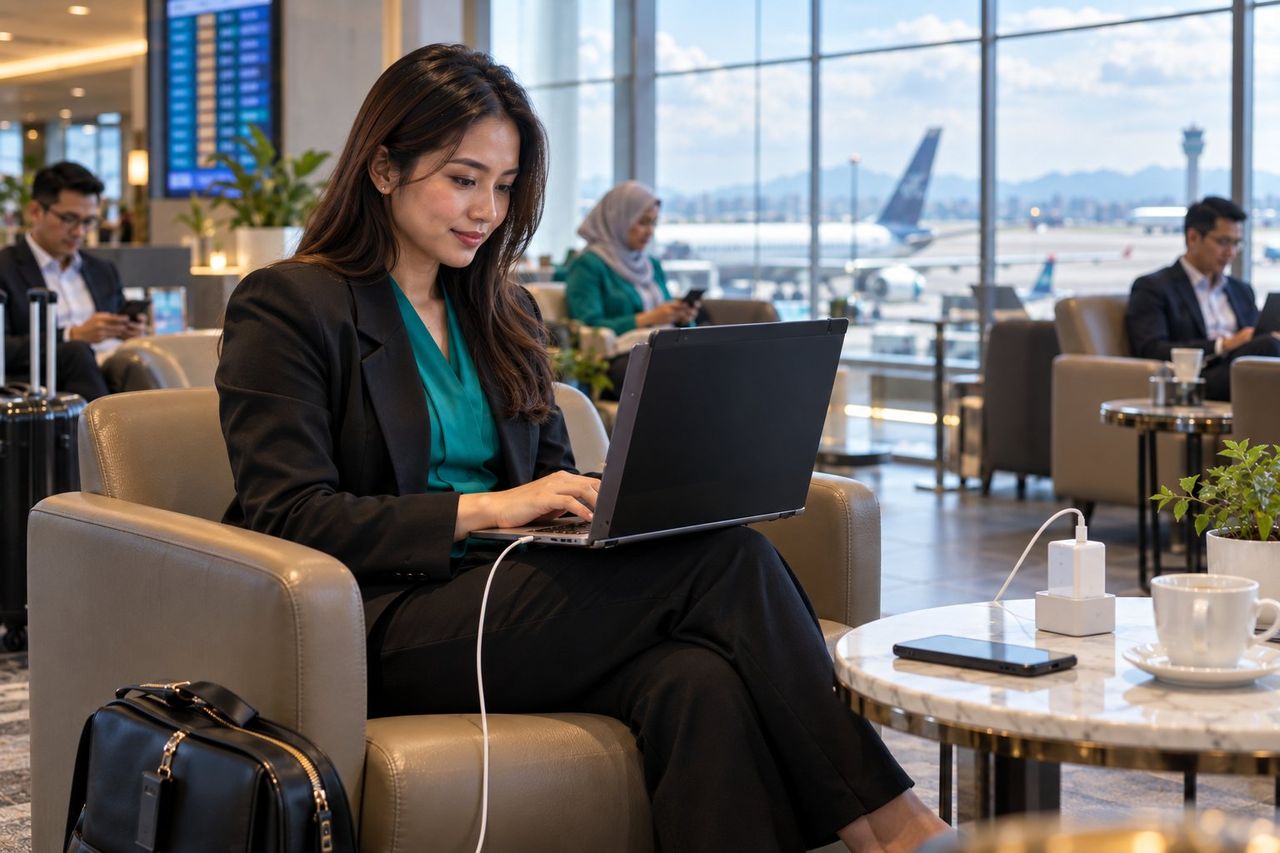 Cybersecurity & Data ProtectionDevices & Remote WorkOffice, home, café, airport and car park: lock screens, updates, encryption, approved apps, public Wi-Fi and VPN, USB and charging, travel and lost devices.
Frequently asked questions
How long should a strong password be?
Should we force staff to change passwords every 90 days?
Are password managers safe?
What is phishing-resistant MFA?
What should I do if I get an MFA prompt I did not request?
Sources
- NIST SP 800-63B-4, Digital Identity Guidelines: Authentication and Authenticator Management (2025)
- Free Malaysia Today: More cyber attacks through stolen logins, says NACSA (22 Mar 2024)
- Free Malaysia Today: Migrate from OTP texts to curb online scams, BNM tells banks (26 Sep 2022)
- The Sun: CyberSecurity Malaysia advocates passwordless authentication (FIDO APAC Summit 2024)
- CISA (United States): Implementing number matching in MFA applications (fact sheet)
This guide is general information for workplaces in Malaysia, checked against the sources above on 30 October 2026. It is not legal advice; laws and guidelines change, so confirm the current text before you act.